
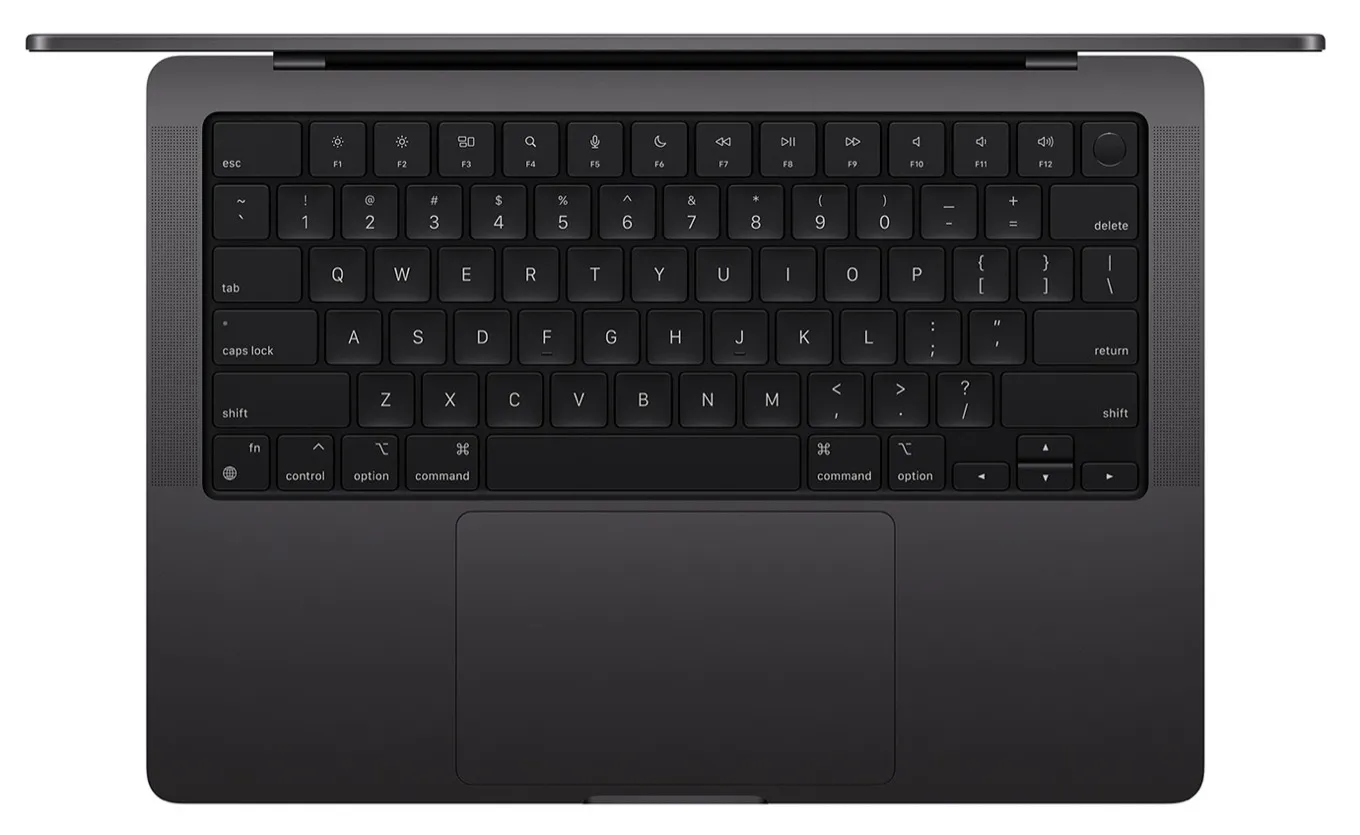
Let’s face it: we’ve all been there. how to take screenshot in laptop You’re staring at your laptop screen, maybe you just landed a killer high score in a game, or perhaps your boss sent you an email with instructions so confusing it belongs in a riddle book. Either way, you want to take a screenshot.
But then it hits you — how do you even take a screenshot on this thing?!
Don’t worry, friend. Whether you’re on a Windows laptop, a shiny MacBook, or that mysterious Linux machine your programmer cousin swears by, I’m here to walk you through the screenshot jungle without breaking a sweat. Let’s turn you into a screenshot ninja — cape optional.
Why Taking a Screenshot Feels Like Magic (Sometimes)
Screenshots are the digital equivalent of grabbing a Post-it note and slapping it on your screen. Only… without the sticky mess.
You use them to:
- Save proof that yes, your internet was down during that Zoom meeting.
- Capture a funny meme before it vanishes into the void.
- Document error messages that look like the computer’s speaking in tongues.
In short, screenshots are the Swiss Army knife of your laptop life. And it’s about time you mastered them.
🎯 First Stop: Windows Laptop (a.k.a. The Wild West of Screenshots)
Alright, cowboy — Windows gives you so many ways to take screenshots, it’s like a buffet. Some are simple, some are fancy, and some are hiding in the shadows like digital ninjas.
🖱️ 1. The Good Ol’ Print Screen (PrtScn)
The classic. The legend. The one key that’s been confusing people since the 90s.
Just hit the PrtScn key (usually hanging out in the top-right corner of your keyboard). Boom — your entire screen is copied. But here’s the catch: it’s not saved. It’s just sitting in your clipboard, awkwardly waiting to be pasted somewhere.
What to do next?
Open Paint, Word, or even an email — hit Ctrl + V. Voilà! Your screenshot appears like magic.
🧠 Pro Tip: It’s like copying a pizza. But unless you paste it, no one gets to eat.
🪟 2. Windows + PrtScn = Screenshot & Save (No Questions Asked)
Now we’re talking.
Hit Windows + PrtScn, and your screen flashes like a paparazzi photo shoot. What just happened? Your screenshot was taken and saved automatically in Pictures > Screenshots.
No pasting. No drama. It’s just… done. Chef’s kiss.
🎯 3. Alt + PrtScn: For the Commitment-Phobes
Don’t want the whole screen? Just the window you’re working in?
Hit Alt + PrtScn, and it snaps only the active window. Think of it like zooming in with a camera lens. Perfect for clean, focused screenshots.
Again, don’t forget to paste it somewhere — the clipboard isn’t a storage unit, it’s more like a waiting room.
✂️ 4. Snipping Tool: Your Friendly Neighborhood Screenshot App
Windows includes a tool called the Snipping Tool. It’s been around longer than TikTok, and it’s surprisingly handy.
- Search for “Snipping Tool” from the Start menu.
- Choose the type of snip: rectangular, freeform (for the Picasso in you), window, or full-screen.
- Click “New,” snip away, and save it.
It even lets you scribble on your screenshot — very handy if you’re trying to circle your friend’s spelling mistake in a group project.
✨ 5. Snip & Sketch: Snipping Tool’s Cool Younger Sibling
Think of Snip & Sketch as Snipping Tool with a makeover. It’s newer, sleeker, and wears AirPods.
- Hit
Windows + Shift + S. - Your screen dims, and you pick what you want to capture.
- It’s automatically copied to your clipboard.
- A notification pops up — click it to edit, annotate, or save.
Snip & Sketch is the secret weapon for Windows 10 and 11 users who love clean screenshots and doodling.
🍏 MacBook Screenshots — Sleek, Stylish, and Surprisingly Simple
Mac screenshots are like Apple itself: clean, efficient, and “magically” intuitive (as long as you remember the key combos).
💻 1. Command + Shift + 3: Whole Screen, Done
Want a snapshot of your entire Mac screen? Press Cmd + Shift + 3. Done. No questions asked.
The file lands on your desktop instantly, named something like Screen Shot 2025-07-01 at 2.45.15 PM.png. Yes, it’s that organized. Respect.
📐 2. Command + Shift + 4: Precision Mode Activated
Now you’re in control. Press Cmd + Shift + 4, and your cursor turns into a crosshair. Drag to select exactly what you want.
Think of it like cropping while you shoot. You’re a sniping sniper now.
🧰 3. Command + Shift + 5: The Control Center
This combo pulls up a little toolbar at the bottom of your screen. It’s like a remote control for screenshots.
You can:
- Snap the whole screen
- Capture a specific window
- Select an area
- Record your screen (yes, like a tutorial wizard)
You can even choose where to save the file. Talk about VIP treatment.
🧙♂️ Linux: For the Tech Wizards
Linux users, you already know you’re part of an elite club. Screenshotting here isn’t hard — it’s just… customizable.
📸 Simple Shortcuts:
PrtScn: Full screen.Shift + PrtScn: Select an area.Alt + PrtScn: Just the current window.
🔥 Flameshot — The Cool Screenshot Tool for Linux
This one’s for when you want more flair.
- Annotate with arrows and highlights
- Blur sensitive data
- Save or upload directly
Install it via terminal (because, of course) and you’re golden.
🛠️ Third-Party Screenshot Apps (Because Sometimes Built-In Isn’t Enough)
Want a few more bells and whistles? Try one of these:
🧊 Lightshot (Windows/Mac)
- Super simple
- Drag to select area
- Add text, arrows, colors
- Uploads to the cloud for sharing
🟢 Greenshot (Windows)
- Capture scrolling web pages
- Great annotation tools
- Free and lightweight
🔴 Snagit (Windows/Mac)
- The Rolls Royce of screenshot tools
- Video recording included
- Perfect for pros, educators, and anyone making tutorials
🌀 ShareX (Windows)
- Open source
- Crazy amount of customization
- Perfect for developers and power users
🔍 Brand-Specific Quirks (Because of Course There Are)
Some laptops like to do things their own way.
💼 HP
- Try
Fn + PrtScnif the regular method doesn’t work. - Or open Snip & Sketch directly from Start.
💻 Dell
- On some models,
Fn + F10might be your screenshot key. - Still, Snipping Tool is your best friend here.
🧠 Lenovo
- If
PrtScnisn’t behaving, tryFn + PrtScn. - Lenovo Vantage (pre-installed) may also have screenshot features.
🏹 Acer
Windows + PrtScnworks beautifully.- Or
Fn + Insertif you’re feeling adventurous.
🎨 Screenshot Like a Pro — Pro Tips Included
Let’s take your screenshot game from “meh” to Michelangelo.
🧊 1. Use Rectangle Snips
They look cleaner. No one wants half your taskbar in a tutorial.
✍️ 2. Annotate With Text and Arrows
Want to show exactly what button to click? Use arrows like a detective in a crime scene investigation.
🕵️ 3. Blur the Private Stuff
Emails, credit card numbers, your crush’s chat — blur it before you share it. No one needs drama.
🧼 4. Name Your Files Clearly
“Screenshot 1347.png” isn’t helpful. Try “error-message-login.png” instead. Future-you will thank you.
🖼️ 5. Use PNG Format
It’s sharp, clear, and perfect for UI screenshots. Save JPEGs for sunsets and cat pics.
There you have it — a complete guide to taking screenshots on your laptop, delivered with fewer tech headaches and more personality than your IT guy on a Friday.
Whether you’re capturing your high score, freezing a moment from a Netflix scene, or collecting evidence to roast your sibling in the group chat — you’re now equipped with all the screenshot power in the world.
So next time someone asks, “Hey, do you know how to screenshot on a laptop?”
You can smile, lean back, and say…
“Yeah. Want a step-by-step tutorial or just the TL;DR?”
Now go forth, and snap your screen like a boss.




Leave a Reply